
Hotelizer PMS November 2026: Stay secure. Stay prepared. Keep learning.
Strengthen your security, get ready for the upcoming season, and make the most of hotelizer' s training opportunities.


Strengthen your hotelizer security: Why you should enable 2FA
The security of your business data and systems is a top priority. At hotelizer, we continuously enhance our security mechanisms, providing you with more tools to control access and protect your users' accounts.
One of the most important security measures you can enable is Two-Factor Authentication (2FA) through a mobile Authenticator App.
1. Enable 2FA for enhanced security!
Using a strong password is essential, but it is not always enough to protect an account.
With Two-Factor Authentication (2FA), you add an extra layer of verification when logging in to hotelizer. In addition to your personal password, you are also required to enter a verification code generated through an Authenticator App.
This means that even if someone gains access to your password, they will not be able to log in without completing the second verification step.
Enabling 2FA is a simple yet essential way to strengthen your account security.
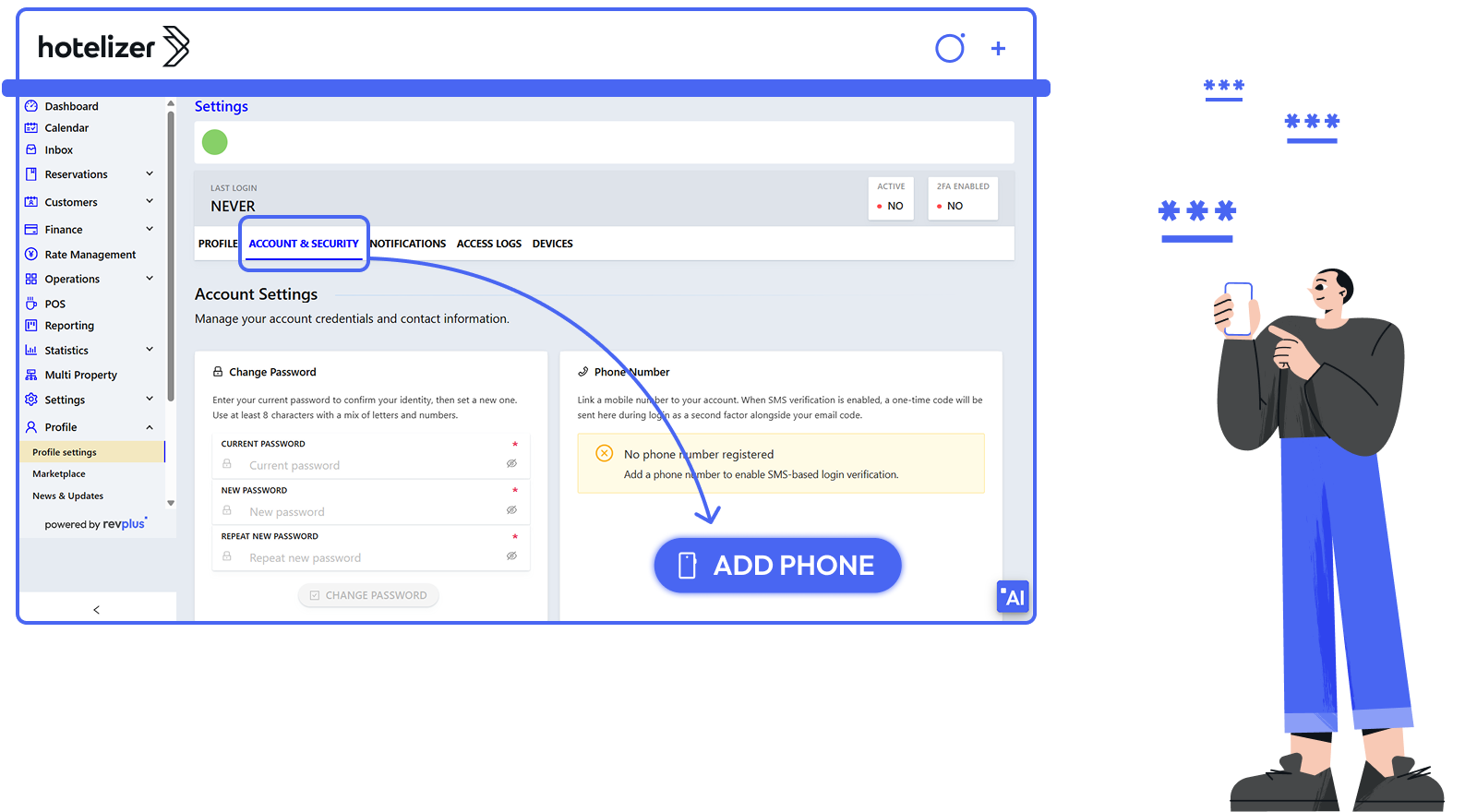
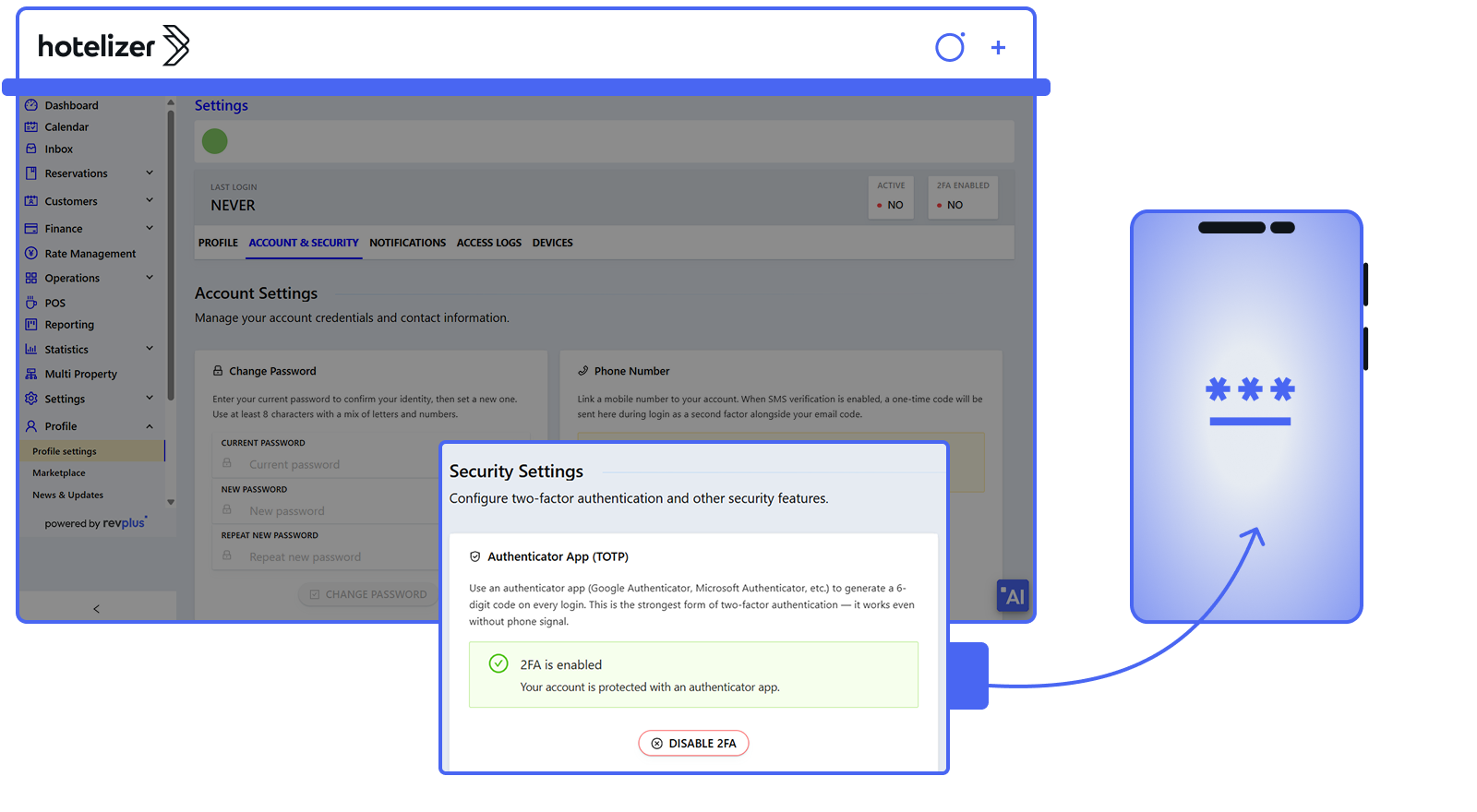
How to enable 2FA: A step-by-step guide
The process is simple and can be completed directly within the hotelizer platform.
2. Additional features for a more secure login
In addition to 2FA, hotelizer offers further security mechanisms to enhance protection during the login process:
- New device verification via email & SMS: When a login attempt is made from an unrecognized device, email verification is required. You can also optionally enable SMS verification.
- Account lockout: Automatic temporary or permanent account locking after multiple consecutive failed login attempts.
- Stronger passwords: New requirements for creating more secure passwords, with guidance provided whenever a password is created or changed.
3. Security policies tailored to your team
Every business has different needs and a different number of users. That's why hotelizer allows you to define security policies based on the level of protection you want to implement.
You can choose settings such as:
- Mandatory password changes.
- Periodic password updates.
- Mandatory device verification via SMS.
- Mandatory use of 2FA through an Authenticator App.
- Mandatory use of strong passwords.
This allows you to create a more controlled and secure access environment for your entire team.
4. Monitor user and device activity
Security goes beyond the login process. It is equally important to know which users access hotelizer and which devices they use.
User access logs
Through user access logs, you can monitor user activity and keep track of:
- Successful and failed login attempts.
- Account lockouts.
- Password changes.
- Suspicious activity and other security events.
Device & session management
You can also monitor the devices used to access hotelizer, with visibility into information such as operating system, browser, IP address and location.
Through the available management options, you can:
Revoke: Immediately terminate a device's access.
Blacklist: Permanently block a device.
Unblock: Restore access to a previously blocked device.
Sign Out: Immediately terminate an active session.
5. Security Tips for Your Everyday Operations
In addition to hotelizer's built-in security tools, there are several simple practices that can further strengthen your business's protection:
- Use unique passwords: Each user should have their own personal password.
- Enable 2FA: Add an extra layer of protection to every account.
- Review active users: Grant access only to team members who need it and deactivate accounts belonging to employees who no longer work at your business.
- Monitor active devices: Regularly review your devices and sessions, and disconnect any that you do not recognize or no longer use.
- Never share your passwords: Avoid sharing passwords or storing them in unsecured locations.
Your hotelizer security is a shared responsibility!
hotelizer provides you with the tools to manage access to your platform with greater control and security.
Take the first step today: Enable 2FA and strengthen your account protection!
Opening Season 2027: Get ready in advance with hotelizer!
Proper availability management starts here!
The new tourism season is approaching, and preparing in advance is key to ensuring the smooth operation of your property.
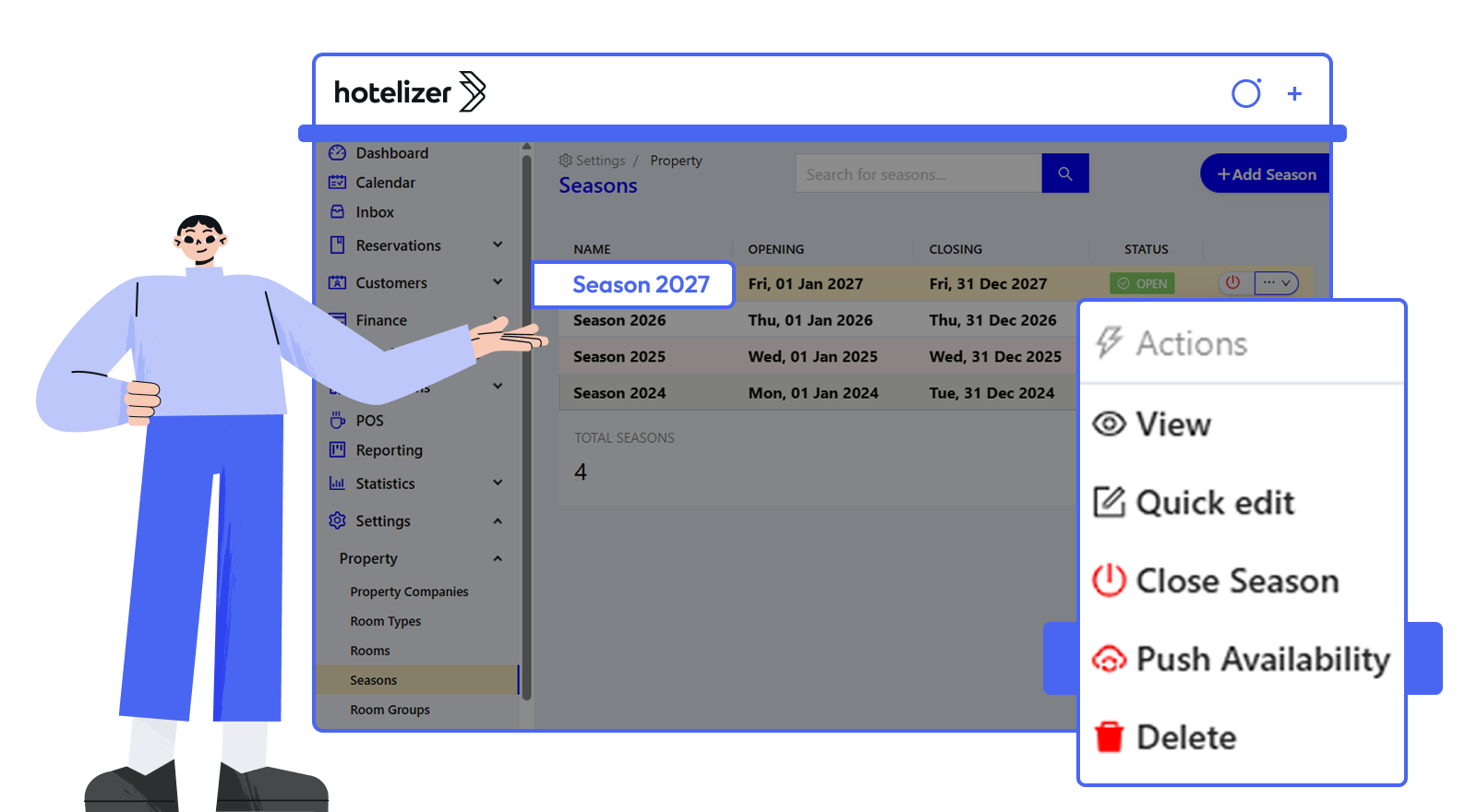
Creating your 2027 operating season in hotelizer PMS is essential for properly managing and updating your availability, as well as setting up your rate plans. Without creating the corresponding operating season, you may encounter issues with availability updates and preparing your sales for the new year.
Why should you do it now?
Creating your operating season in advance helps you:
- Prepare for the new season early, avoiding delays in organizing your sales.
- Ensure that availability is correctly updated across your connected channels, such as Booking.com, Expedia and your website.
- Proceed with setting up your rate plans for 2027.
- Avoid gaps in your planning and be ready to accept bookings from travelers who organize their holidays several months in advance.
How to create your operating season
The process is simple and can be completed directly through hotelizer PMS:
- Navigate to Settings → Properties → Seasons.
- Select + Add Season.
- Enter the season name, e.g. Season 2027.
- Fill in the start and end dates in the Opening Date and Closing Date fields.
- Click Create Season to save the season.
- Select the three-dot menu next to your new season and click Push Availability to push availability to your connected channels.
Important note:
Each operating season must be continuous and cover only one calendar year. If you wish to temporarily stop availability on specific dates, you should apply the corresponding Stop Sales restrictions through the Reservations Plan.
Additionally, to avoid unwanted bookings outside your property's operating period, it is essential to apply Stop Sales restrictions to the corresponding dates.
Need help?
Watch the video below for detailed instructions on how to create your operating season:
Watch the Click2Learn training video by clicking here.
Log in to hotelizer PMS today and create your 2027 operating season. This way, you'll be ready to organize the new season and prepare your sales well in advance.
If you have any questions or need assistance, the hotelizer Support Team is always here to help.
Get started with hotelizer, step by step
Would you like to get to know hotelizer even better, or do you have a new team member joining your team?
Our new recorded Get Started webinar covers everything you need to get started: from the basic features to the most important initial settings that will help you quickly become familiar with hotelizer.
The webinar serves as a practical reference guide that you can revisit whenever you need, whether you want to go through a process from the beginning or refresh your memory on a specific step.
On demand, whenever it suits you!
The webinar replaces the weekly live training webinars, offering greater flexibility and allowing you to watch it at your own pace and convenience.
TIP: The webinar is divided into sections. Open it in a second window alongside hotelizer while working and follow the steps in real time.
Live Q&A Sessions
Have questions? We have the answers.
After watching the Get Started webinar, you can join our Live Q&A Sessions to get answers to any questions you may have.
Twice a month, the hotelizer Support Team is available for a live Q&A Session, specially designed to address your questions.
- Do you have any questions about the recorded webinar you watched?
- Would you like us to walk you through a specific process that was not entirely clear in the recorded webinar?
First, watch the Get Started Webinar and then join a Live Q&A Session, share your questions with us and get immediate answers live from our team.
One-to-One Trainings
Training tailored to your needs!
Every property has different needs. That's why you can schedule a One-to-One online training session with a specialized member of the hotelizer Support Team.
The training is designed around your team's needs and the topics you wish to cover, ensuring that your time is used effectively and that the session is both focused and practical.
One-to-One training sessions are available at an additional cost, which depends on the duration and specific training requirements.
For more information, please contact our Support Team by phone at +30 211 7702770 (ext. 9303) or by email at support@hotelizer.net.